 Lanthorn Studio
Install
Lanthorn Studio is free to download and use. The same download becomes Pro when you start the trial or enter a license key; there is nothing separate to install.
Windows
- Download Lanthorn Studio for Windows (Windows 10 or 11, 64-bit).
- Run the installer. It installs for your user account and adds a Start menu shortcut.
- If Windows SmartScreen shows a warning, choose More info → Run anyway.
Mac
- Download Lanthorn Studio for Mac (macOS 11 or later; one download runs natively on Apple silicon and Intel).
- Open the disk image and drag Lanthorn Studio into Applications.
- If macOS asks whether Lanthorn Studio may find devices on your local network, choose Allow so it can reach OBS, your cameras and the phone remote.
Updates
With Pro, Lanthorn Studio checks for signed updates by itself. When one is ready you’ll see an Update badge; it only installs when you press Install and restart in Settings → Updates & about, never in the middle of a service. On the free version, download the newest version from this site whenever you like and install it over the old one; your songs and settings stay.
The setup wizard
The first time Lanthorn Studio opens it walks you through a few short steps. The optional ones can be skipped, and you can run the wizard again from Settings → Run setup wizard.
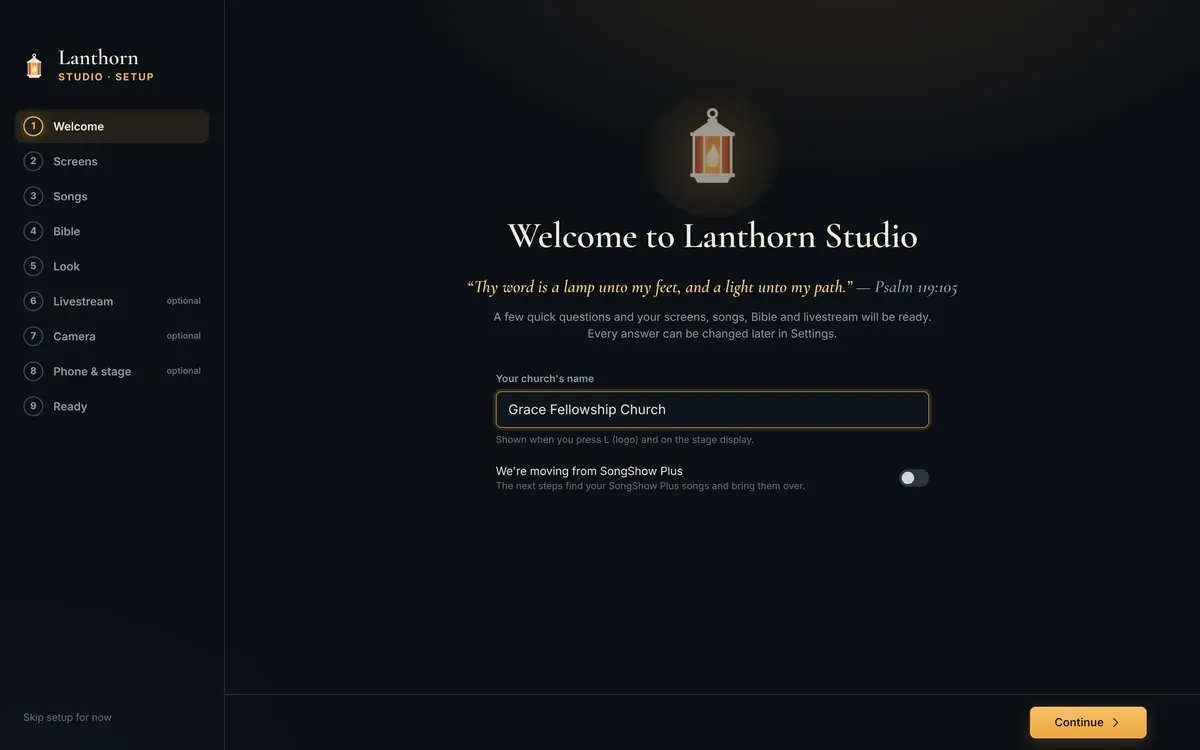
- Welcome. Your church’s name (shown when you press L for the logo and on the stage display), and whether you’re moving from SongShow Plus.
- Screens. Lanthorn Studio lists every connected display. Pick which is the audience projector and which (if any) is the stage display; Identify screens flashes a number on each.
- Songs. Import from SongShow Plus (see below), SongSelect, OpenLyrics or text, or start with an empty library.
- Bible. Choose your default version. KJV is selected to start.
- Look. How lyrics and verses look in the room and on the livestream.
- Livestream PRO Connect to OBS. Optional.
- Camera PRO Add your PTZ camera and name its presets. Optional.
- Phone & stage. QR codes for the stage display and the phone remote PRO. Optional.
- Ready. A test slide to check it all.
Import from SongShow Plus
Lanthorn Studio reads SongShow Plus .sbsong files directly: titles, verses, choruses, bridges, verse order, authors, copyright, CCLI numbers and topics come across. Your SongShow Plus copy is not changed. Import is free.
- Find your SongShow Plus songs folder. It is usually
Documents\SongShow Plus\Songson the computer that runs SongShow Plus. If your church keeps a shared library, it is usually the shared data folder set in SongShow Plus under Options. - If SongShow Plus is on a different computer, copy that whole folder onto a USB stick or a network share.
- In Lanthorn Studio choose File → Import Songs… (or the Songs step of the wizard). It looks for SongShow Plus folders on this computer by itself; if it doesn’t find yours, click Choose a folder. Subfolders are included.
- When it finishes it shows how many songs came in and lists any it could not read, so you can check those by hand.
Importing again later is safe: songs already in the library (same CCLI number, or same title and first line) are skipped, unless you tick Replace songs that are already in the library.
Lanthorn Studio Pro
Lanthorn Studio is free forever. Pro is a one-time purchase that adds the livestream and booth extras. The top bar shows which you have: FREE · Get Pro, PRO TRIAL or PRO.
Free
- Lyrics, scripture, media, announcements, countdowns
- 10 public-domain Bibles
- One projector or TV, plus a stage display
- SongShow Plus, SongSelect, OpenLyrics import
- Song editor, built-in looks, setup wizard
Pro PRO
- OBS: lower thirds, Go live, scenes, stream health, stream key
- PTZ camera presets and cues
- Phone remote
- More screens; key & fill lower-third outputs
- Custom looks, licensed Bible import
- CCLI song usage report, automatic updates
The 14-day trial
Click Try Pro free for 14 days on any Pro card, or in Settings → Lanthorn Studio Pro. No card or account is needed, and the trial can be started once per computer. When it ends, Lanthorn Studio goes back to Free; everything you set up (OBS, cameras, looks) is saved and comes back the moment you add a license.
Entering your key
- After you buy Pro, your key arrives by email (it also appears on the thank-you page). It starts with
LANTHORN-. - In Lanthorn Studio open Settings → Lanthorn Studio Pro (or click the FREE · Get Pro pill in the top bar).
- Paste the whole key into License key and click Activate.
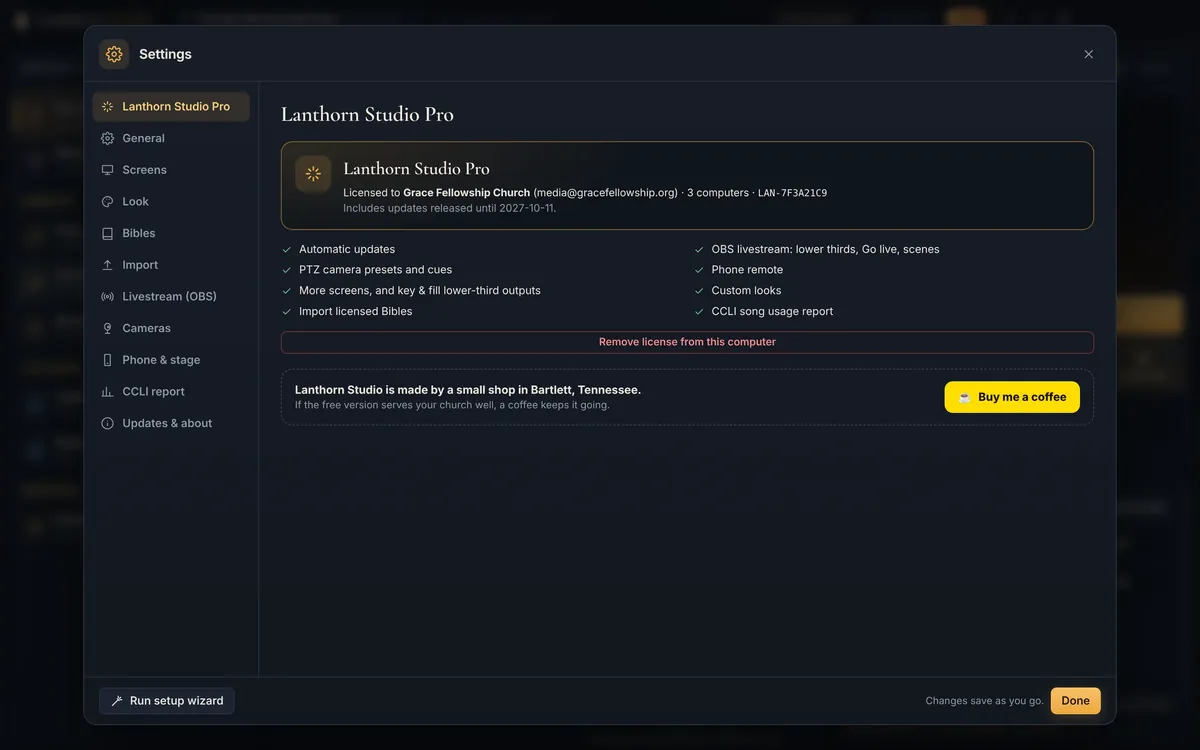
Works offline. Keys are checked on the computer itself, so activation and Pro work with the internet unplugged. Nothing has to “phone home” on a Sunday morning.
How many computers
Pro · Church covers up to 3 computers and Pro · Multi-campus up to 10, Windows and Mac mixed. Enter the same key on each one.
Moving to a new computer
On the old computer, open Settings → Lanthorn Studio Pro and click Remove license from this computer. Then enter the key on the new one. If the old computer is gone or won’t start, just enter the key on the new one; we trust you.
Renewing updates
Pro includes a year of updates. After that, Pro keeps working forever on the versions released during your year; Settings shows the date. For another year of new versions, renew for $29 (or click Renew updates in Settings) and paste your current key. You’ll get a new key with the later date; activate it the same way. Renewing is optional.
Refunds: if Pro isn’t right for your church, email support@lanthornstudio.app within 30 days of buying for a full refund.
OBS and livestreaming PRO
Lanthorn Studio talks to OBS Studio (version 28 or later) over its built-in WebSocket server, so it can add the lower third, switch scenes and start or stop your stream.
- In OBS open Tools → WebSocket Server Settings.
- Tick Enable WebSocket server. Leave the port at 4455 unless you have a reason to change it. Click Show Connect Info and copy the password.
- In Lanthorn Studio open Settings → Livestream (OBS) (or the wizard), enter the password, and click Connect to OBS. If OBS runs on another computer, change the address to
ws://<that computer’s IP>:4455. - Click Add lower third to OBS. Lanthorn Studio adds a browser source called Lanthorn Lower Third to the scenes you choose, sized to your canvas. You can move or crop it in OBS like any other source.
From then on, whatever is on the audience screen is mirrored as a lower third: lyrics line by line, and verses with their reference. Choose its style in Settings → Look, and turn it on or off at any time with Lower 3rd (or the T key).
Facebook Live and YouTube
Paste your stream key in Settings → Livestream (OBS) and Lanthorn Studio sets it in OBS for you (or set it in OBS under Settings → Stream as usual). The Go live button then starts and stops the OBS stream, and the status bar shows the connection, bitrate and dropped frames.
Key & fill outputs
For a capture card or hardware switcher instead of OBS, assign a spare output in Settings → Screens to Lower third on green (for chroma key) or Lower third on black (for luma key).
PTZ cameras PRO
Lanthorn Studio recalls presets on PTZ cameras that speak VISCA over IP, including PTZOptics models.
- In Settings → Cameras, click Add a camera and enter its IP address. Choose the protocol your camera’s manual lists: VISCA over IP (UDP, usually port 52381, or PTZOptics’ 1259), raw VISCA over TCP, or PTZOptics HTTP. Test (send home) checks the connection.
- Name each preset so the buttons read “Pulpit” rather than “2”. Move the camera with the D-pad and zoom on the Camera tab and click Save preset, or use presets already saved with the camera’s own remote.
- To cue a camera, open an item’s Cues & look and choose a camera preset (and an OBS scene, if you like). When that item goes live, the camera moves.
Give your cameras fixed IP addresses (a DHCP reservation in your router works) so they are where Lanthorn Studio expects them every Sunday.
Stage display and phone remote
Lanthorn Studio serves two pages on your local network on port 7310. Open them in any browser on the same network; Settings → Phone & stage shows the exact addresses and QR codes.
| Page | Address | For |
|---|---|---|
| Stage display | http://192.168.1.20:7310/stage | The band and the preacher: current and next line, a clock, a service timer and messages from the booth. Free. |
| Phone remote PRO | http://192.168.1.20:7310/remote | Next, previous, black, clear, logo and lower third from a phone, for when the operator is also on the platform. |
The remote asks for the PIN shown in Lanthorn Studio, so a visitor on the church Wi-Fi cannot advance your slides. Extra projectors and confidence monitors PRO are added under Settings → Screens; the free version drives one audience screen plus a stage display.
Cloud workspace MULTI-CAMPUS
With a Pro · Multi-campus license, all of your church’s computers can share one library and work together on Sunday morning.
- Add your Multi-campus key on each computer (Settings → Lanthorn Studio Pro).
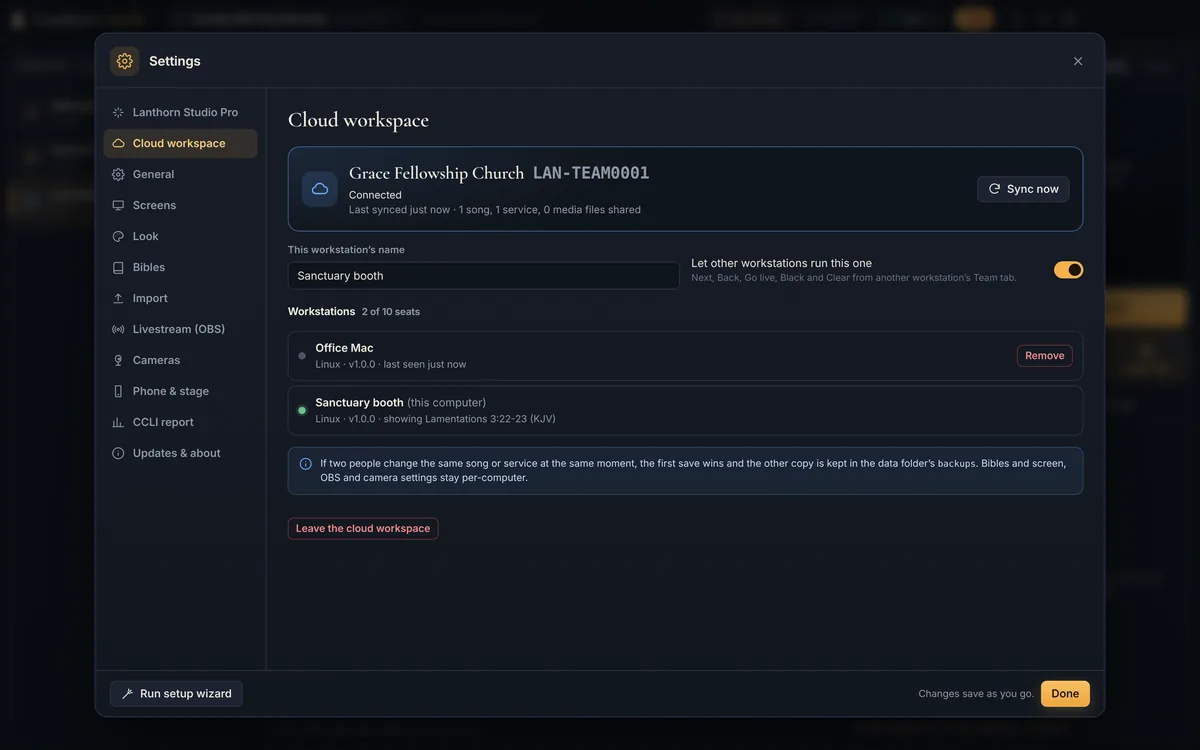
- Open Settings → Cloud workspace, give the computer a name people will recognise (“Sanctuary booth”, “Office Mac”, “Youth room”) and click Join the cloud workspace. What’s already on that computer is added to the shared library; nothing is deleted.
- Do the same on the other computers. Each one uses a seat; your license’s seat count is shown on the page, and you can Remove an old computer there to free its seat.
What syncs
Songs, services (presentations), media files and looks. Edit Sunday’s service from the office and it’s on the booth computer within seconds. Bibles, screens, OBS, cameras and the phone-remote PIN stay per-computer, because they belong to that room. If a computer is offline, its changes wait and sync when it reconnects. If two people change the same song or service at the same moment, the first save wins and the other copy is kept in the data folder’s backups folder.
The Team tab
On the Live panel, Team lists the other computers with what each has on screen. If a computer has Let other workstations run this one turned on (Settings → Cloud workspace), you can press Next, Back, Black and Clear on it from yours. Follow makes your computer show exactly what the other one shows, item, slide and Black/Clear, which is handy for an overflow room, a foyer TV or a second campus watching the main service.
The cloud workspace is included while your license’s updates are current: a year with every purchase, then $29 a year. If updates lapse, your library stays on every computer; only the syncing pauses until you renew.
Keyboard shortcuts
| Keys | Action |
|---|---|
| Space → ↓ Page Down | Next slide |
| ← ↑ Page Up | Previous slide |
| 1–9, 0 | Jump to that slide (0 is the tenth) |
| Home End | First or last slide |
| Shift + C / V / B / P / T | Jump to the next chorus, verse, bridge, pre-chorus or tag |
| Enter | Show the selected service item |
| B | Black screen |
| C | Clear text (keep the background) |
| L | Show the church logo |
| T | Lower third on or off PRO |
| Esc | Clear everything |
| Ctrl/⌘ + F | Find a song |
| Ctrl/⌘ + K | Look up a verse |
Presentation remotes (“clickers”) that send Page Up and Page Down work without setup.
Getting help
Write to support@lanthornstudio.app with what you were doing and what happened. Include your Lanthorn Studio version (Settings → Updates & about) and whether you are on Windows or Mac. We are a small shop in Bartlett, Tennessee, and we read every message, free or Pro.
Is the free version serving your church well? A coffee keeps it going. It doesn’t unlock anything; it just says thanks.
Buy me a coffee